A crooked receipt photograph may work today and be difficult to read when you need it a month later. During a Mérida stay, use a simple method to turn paperwork into complete files. The most important part happens after capture: opening and checking the result.
Start with a clean scan
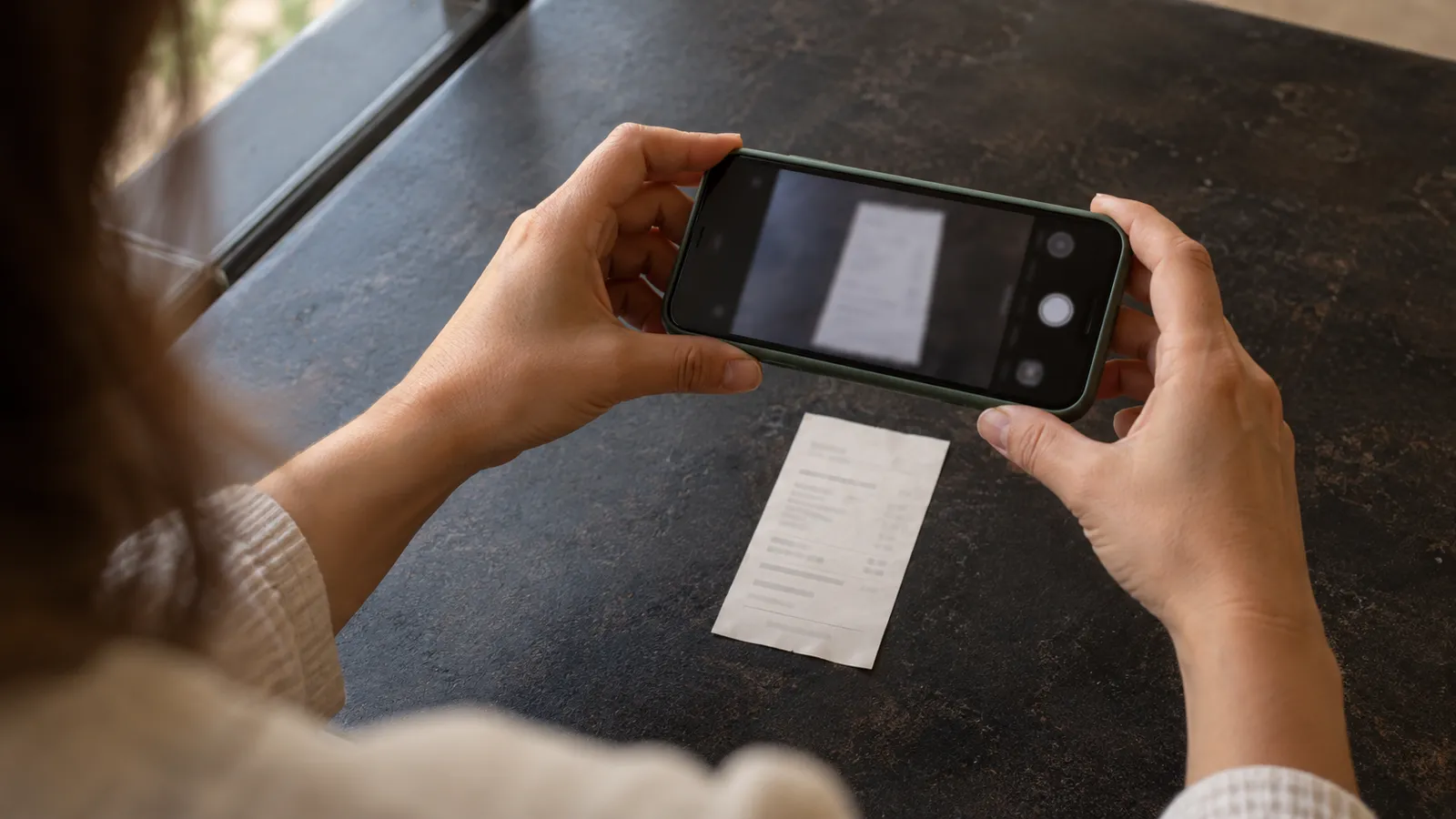
Place the paper flat in even light. Clean the lens and hold the phone parallel to the page to reduce distortion. Check for shadows over names, dates or numbers. Keep the same orientation throughout a longer document.
Google Drive on Android can scan and save documents; Notes and Files on iPhone also offer scanning. Find the document function in your application and establish where it saves the result. Before giving personal information to a new service, check its storage destination and who can access it.
Inspect the whole file
Open the finished PDF, count its pages and zoom in on small text. Include the reverse when it contains information. A good-looking thumbnail is not enough: cropping can remove a reference number, signature or instruction at the edge.
One iPhone detail matters: exporting an entire note as a PDF may include only the first page of a multipage PDF attachment. Open and share the scanned document itself, then verify that the resulting file contains every page. Make the same final check whatever application you use.
Choose names that help you find things
Use a simple structure: date, document type and short subject. For example, “2026-10-02_laundry_receipt.pdf”. Avoid names such as “scan_final_final2”, and keep full identity numbers out of filenames. Searching by date or service should lead you to the right item.
Separate originals, working copies and files already sent. If you adjust orientation or contrast, preserve the original when it may be needed. Automatic text recognition can help with searching, but check any number you copy before using it in a form.
Store deliberately
- Confirm you are using the correct personal or work account
- Keep private paperwork outside shared folders
- Verify that the backup has finished
- Retain the paper when the recipient or process requires it
A scan does not automatically replace an original or a certified copy. Confirm accepted formats with the person requesting the document. When it is time to send it, use our limited-access sharing guide rather than opening your entire stay folder to the recipient.